
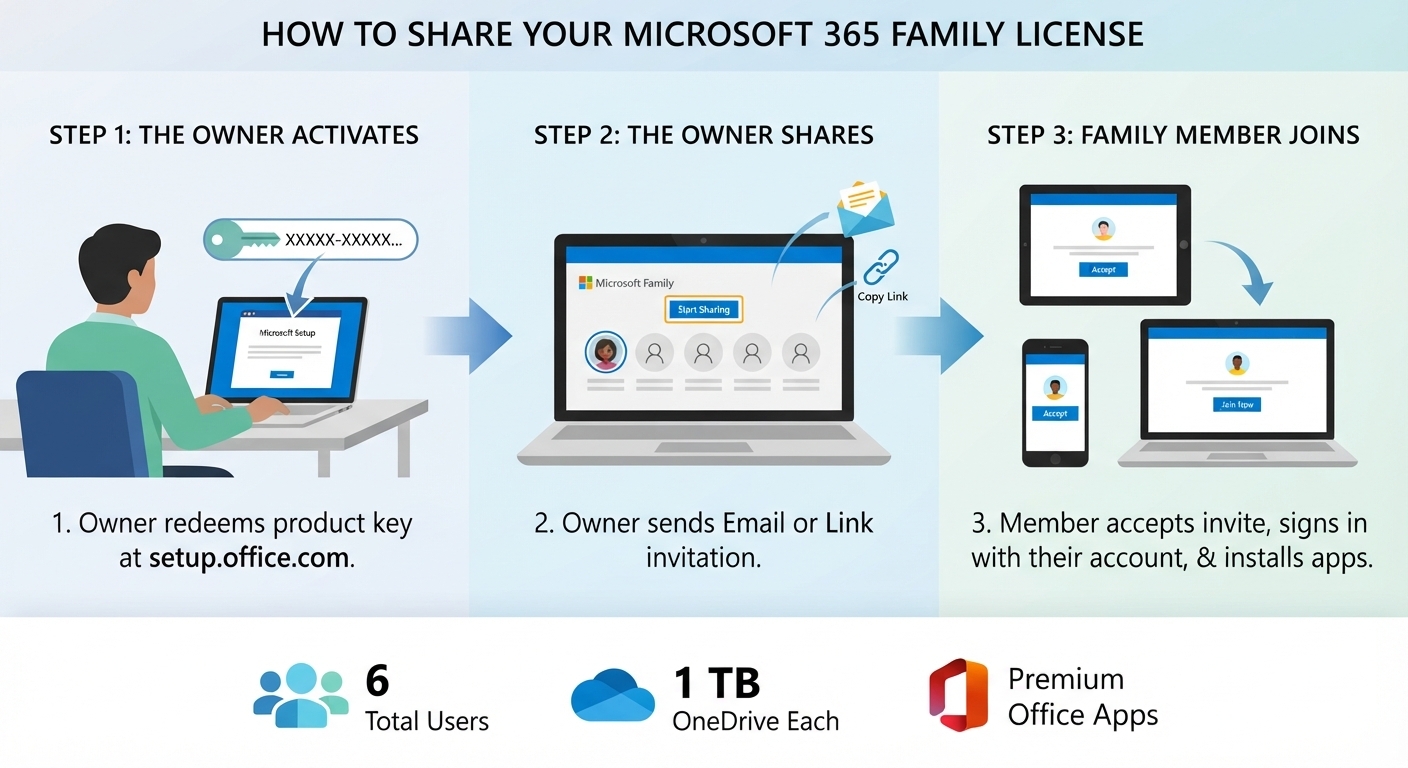
Setting up a new Microsoft 365 Family licence is an excellent way to get premium Office apps for your household. Learn how to correctly activate your subscription and safely share it with up to five family members without merging your personal data.
Step-by-Step Activation & Sharing Guide for M365
Activating the Main Account Licence
Part 1: How to Load (Activate) Your New Licence
If you have just purchased a retail box or a digital product key, the primary account holder must link it to their personal Microsoft account first.
1. Open your web browser and go to: office.com
2. Sign in with your personal Microsoft account (e.g., your @outlook.com or @hotmail.com email). If you do not have one, click Create a new account.
3. Type in your 25-character product key.
4. Follow the remaining on-screen prompts to assign the licence to your country and region.
5. Once complete, your licence is active! You can now download the apps onto your own computer from your Microsoft account services page.
Part 2: How to Share the Licence with Family Members
Crucial Rule: Never give your family members your product key or your personal password. They will log in using their own separate Microsoft accounts, keeping their files completely private.
Step 1: Send the Invitation (Done by the Owner)
1. Go to your Microsoft account dashboard on your web browser and log in.
2. Navigate to the Services & Subscriptions tab at the top of the page, then scroll down to your Microsoft 365 Family section and click Sharing.
3. Click the Start sharing button.
4. Choose one of two methods to invite your family member:
• Invite via email: Type their email address and click Invite. They will receive an automated email from Microsoft.
• Invite via link: Click Create link, then click Copy link. You can paste this link into a WhatsApp message, SMS, or private chat to send it directly to them.
Step 2: Accept the Invitation (Done by the Family Member)
1. The family member must open the email or click the link you sent them.
2. Click the Get started button, then select Join now.
3. They will be prompted to sign in with their own personal Microsoft account (or create a free one if they don't have it).
4. Once they join, they are officially added to your family group and gain access to all benefits.
Step 3: Install the Apps (Done by the Family Member)
1. After accepting the invite, the family member should go to their own Microsoft account page.
2. Click Install Microsoft 365 to download the installation file to their computer.
3. Run the downloaded file and let the office apps install.
4. Open any app (like Microsoft Word) and sign in using their own email address to activate it.